The practice notebook
How to make a backing track from a YouTube video on your phone
Start with a recording you own or have permission to download and process. Copy its YouTube link, paste it into karaoke-ai, and wait for the instrumental before singing. You can rehearse in your phone’s browser and download the backing audio for later.
Make a practice trackPick one suitable video
Use a single, completed public video. Playlists, livestreams, private videos, and videos that require a login are unsupported. Public availability alone does not mean you have permission to process someone else’s audio.
Choose the version you intend to rehearse: a different arrangement or a long spoken introduction can change your practice. Open the video in YouTube, tap Share, then copy the link.
Paste the link and wait for the result
Open karaoke-ai in your mobile browser. When YouTube import is available, press and hold in the Song link field and paste your copied link. Choose the song language if you know it, then tap Make karaoke.
Screenshots show the real mobile interface with demo audio and words. They explain the controls, not processing speed or output quality.
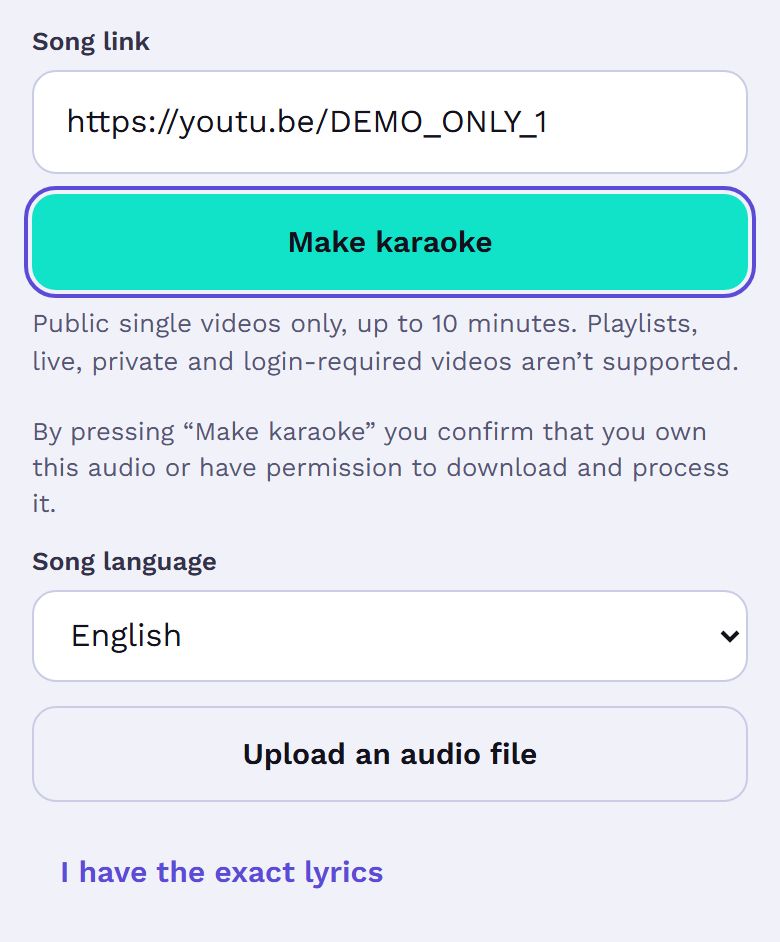 Open full-size URL form screenshot
Keep the result page handy while it shows progress. A submitted link is not a finished backing track: wait until processing has completed and the practice player appears. Processing time varies; if an error appears, follow the message instead of assuming the audio is ready.
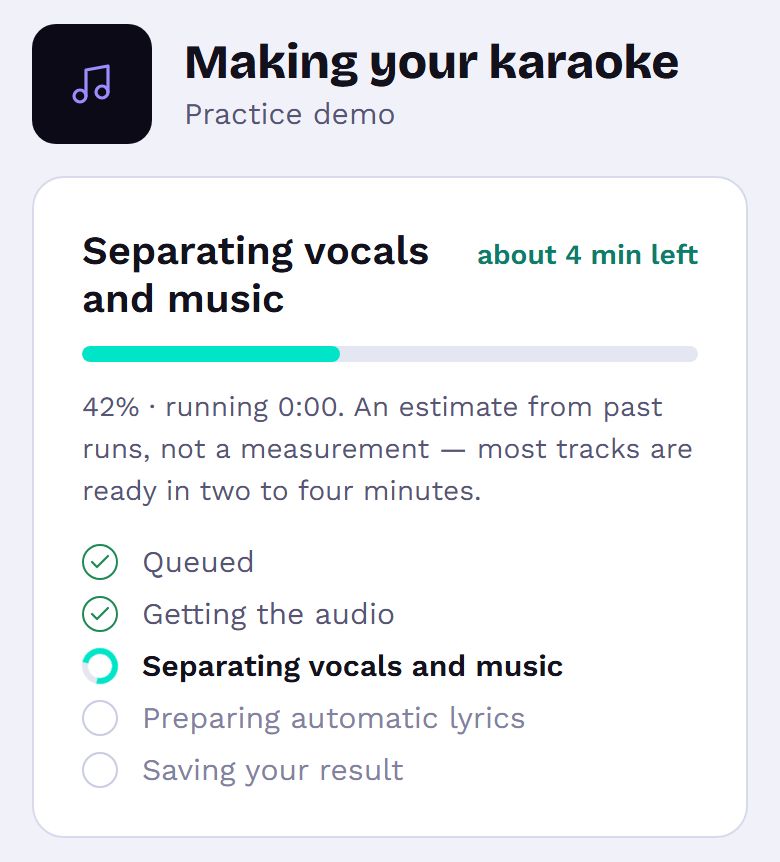 Open full-size processing screenshot
To use a file instead, choose Upload an audio file on the homepage and select audio you own or have permission to process from your phone’s file picker. MP3, WAV, FLAC, M4A, and OGG are accepted formats. Check its size and duration, select the language, and submit it.
Sing, listen, and save the instrumental
Press play and sing over the instrumental. If you lose the melody, use the Original control when available to blend the full original recording back in, then reduce it as you gain confidence. This adds the complete recording, including instruments, rather than an isolated vocal.
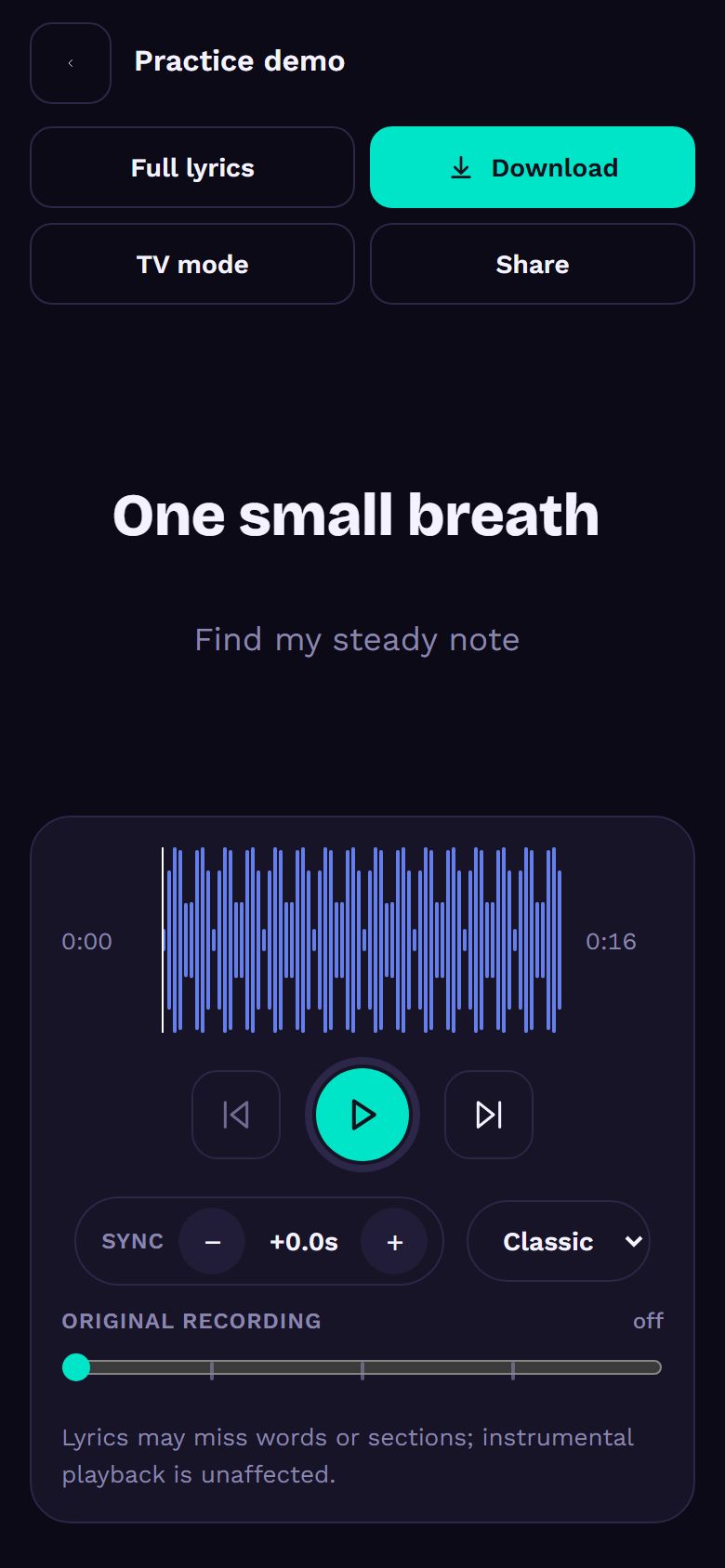 Open full-size ready player screenshot
Try a familiar verse and chorus before relying on the result for a rehearsal. Separation can leave traces of singing or soften instruments; sound quality and lyric timing vary with the recording.
Use the player’s download control to save the instrumental audio. Your phone’s browser may save a file, show a prompt, or open the audio. Use the save or share options it offers, then check your downloads or files app. Exact menus and save locations depend on your browser and phone. Save before the result expires.
The result is a browser practice player plus an audio download. It does not create an MP4 karaoke video.
Common questions
Why can I still hear a voice?
Backing vocals, reverb, and dense mixes can remain after separation. First turn Original down to check the instrumental on its own.
What if lyrics are wrong or missing?
Automatic lyrics may be incomplete or absent. You can still practice with the instrumental. Custom lyrics use approximate timing, so they do not guarantee synchronization.
What if YouTube rejects the link?
Even a public video can fail to import. Read the error, try another permitted single video, or upload a permitted audio file you already have. If import is paused, use the upload option.
Ready for a practice run?
Bring one permitted recording and start with a section you know.